
Manual permissions: Create report viewers and set permissions
Manual permissions let you hand-pick exactly who can see a survey's results. This is the best choice for people who sit outside your reporting structure, or when you want to give access to a custom group.
If you want every People Leader to see their own reporting line automatically, use Automated permissions instead. Only Account Managers, Account Admins or Survey Administrator roles can setup or edit report viewer permissions.
Before you start
- The survey must be Pending, Active, or Closed.
- The people you want to add must already be users in your organisation.
Step 1: Open manual permissions
- Select Surveys from the left menu.
- Find your survey, select the three dots or click on the survey card, then select Permissions.
-
On the Manual permissions card, select Configure manual permissions (or Manage manual permissions if you have set it up before).
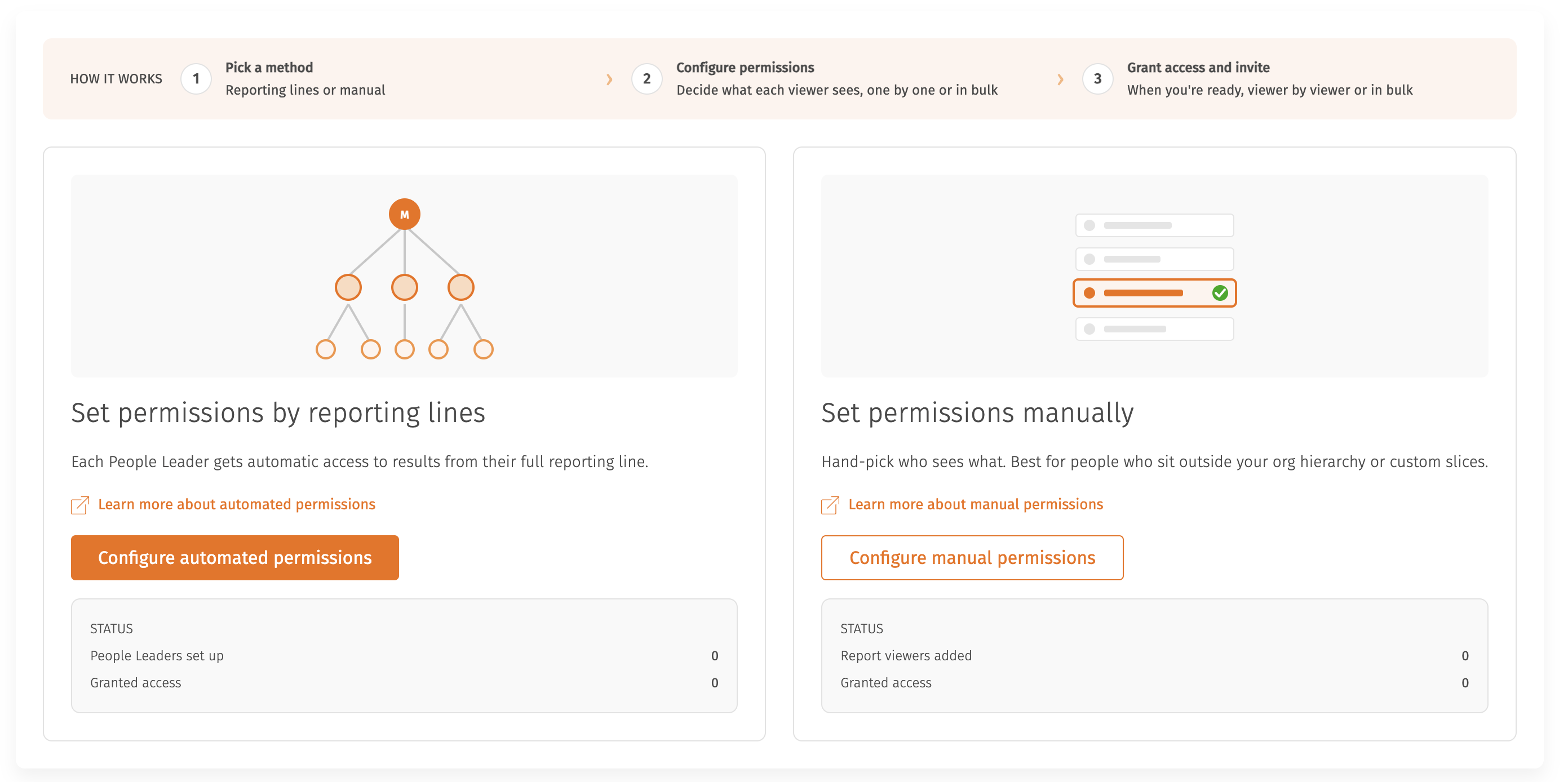
Report viewer permissions - landing page
Step 2: Add report viewers
- Select Add new report viewer.
- Find people by name or email, or use the filters.
- Select the people you want, then select Done.

Step 3: Set what each person can see
Select a person's name to open their permissions, then set:
- Demographics: whose responses they can see.
- Filters: what they can filter by.
- Reports: which reports they can open.
- Question permissions: hide specific questions if needed.
- Hide sensitive comments: If you give this viewer the Text Analysis report, a Hide sensitive comments option appears under it. Turn it on to remove comments flagged as sensitive from the Text Analysis report and its exports for this viewer. It becomes available once Text Analysis is selected for them.
- Exports: Under the reports, a Disable exports toggle controls whether this viewer sees the export button. Exports are allowed by default; turn the toggle on to stop this viewer downloading or exporting results (in this survey's reporting and in any compare report that uses this survey).
To check their experience before saving, select Save & Preview as [name]. Then select Save changes.

Step 4: Grant access and invite
From the list you can enable access and send invitations, one person at a time or in bulk. See "Invite report viewers to view results".